Sub-Items
Sub-items are comments in your inspection report that you want to make stand out. Your sub-items will have a rating of their own and will show up separate on the report.
To get started, either pick an existing comment or type in a new comment.
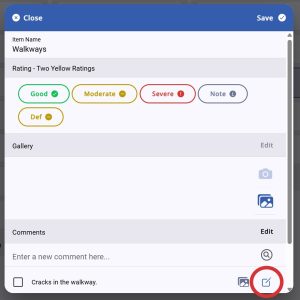
Click on the edit button to open the comment up.
Click on the “Add a Rating” button.
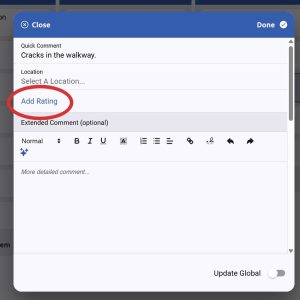
You can now select how you want this sub-item rated, using your selected rating system.
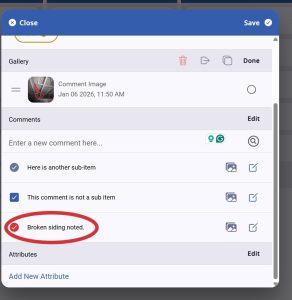
Save your changes and close the sub-item. You will see the item with a round checkbox next to it instead of the usual square one. You can still check and uncheck it as you do with regular comments. The checkbox will be the color of the rating you selected.
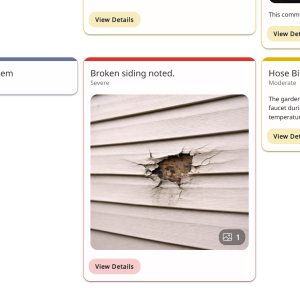
When you publish your report, the sub-item will show up in the summary if your settings call for it, as well as in the main report. The card will show the text from the comment you turned into a sub-item as its heading, and any pictures you add to the card will show up here as well.
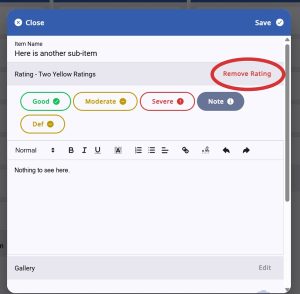
To turn a sub-item back into a regular comment, open up the edit window again.
Here, you select “Remove Rating” to make it revert into a regular comment.