Setting Up Your Widget – Time Slots – & Scheduler
In this short video, we show you how to set up your time slots and add your info to your online scheduler. Written instructions are below the video.
Here are step-by-step instructions on setting up your Time Slots and Widgets.
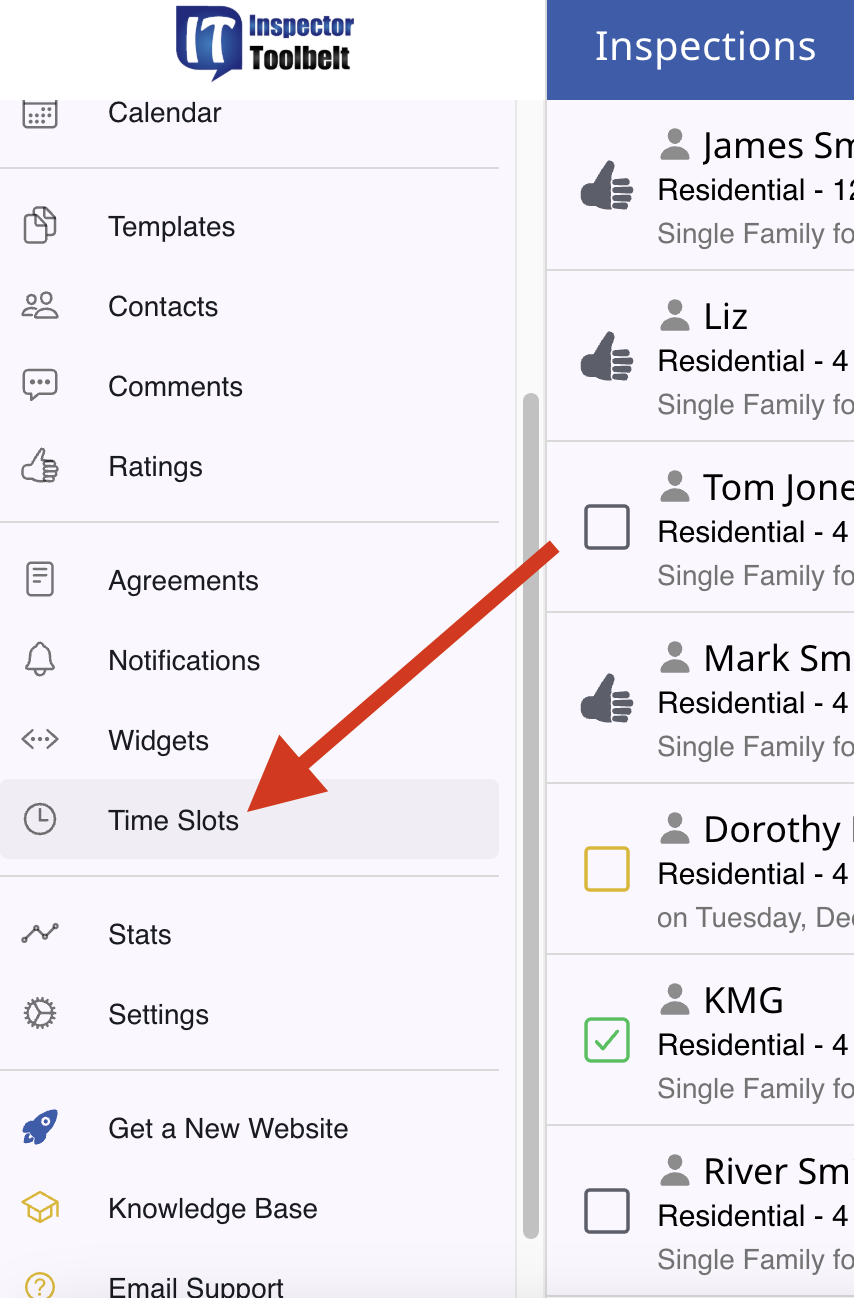
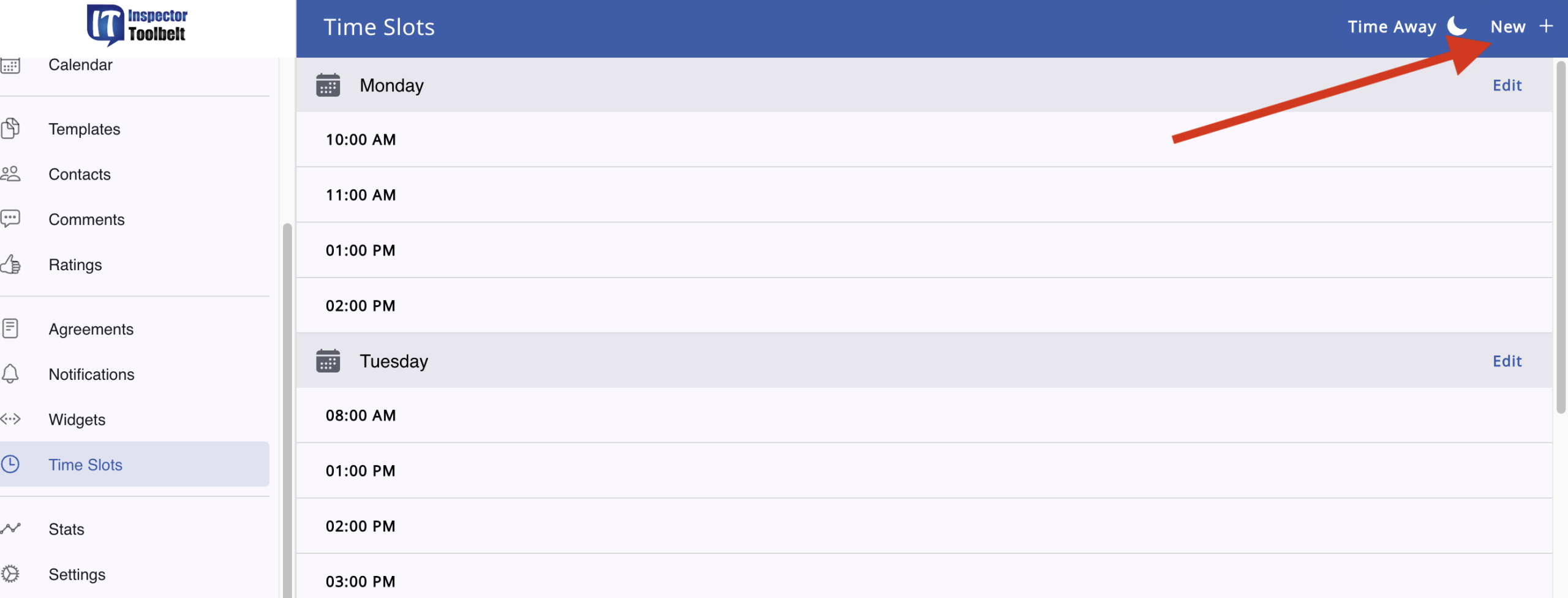
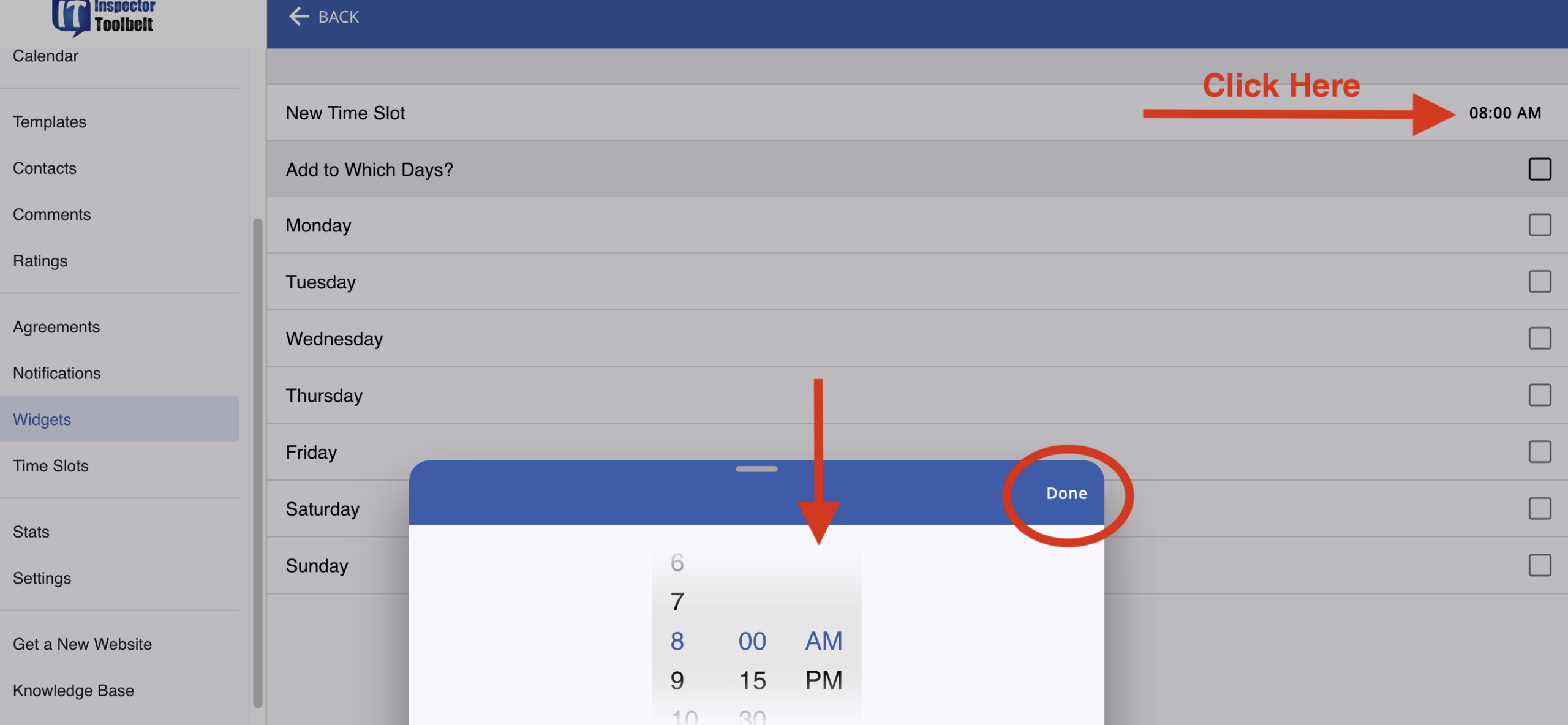
Go to Time Slots in your menu. Setting up time slots will determine when clients can schedule inspections. Click the New button.
Now you can select the days and times that you work. When you have set them all up, click Done to save.
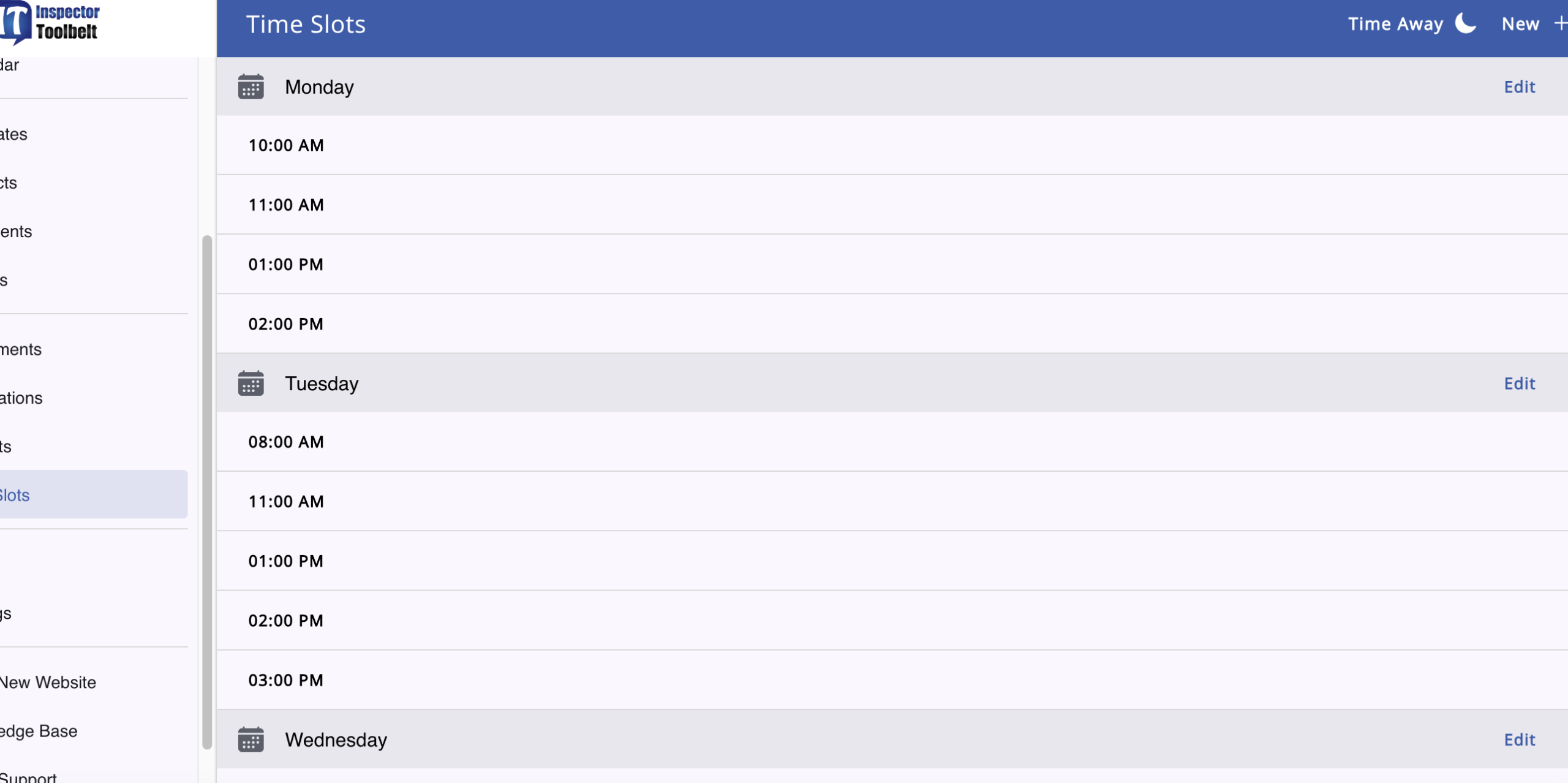
You can now see all the days and times that you have set up to work each week.
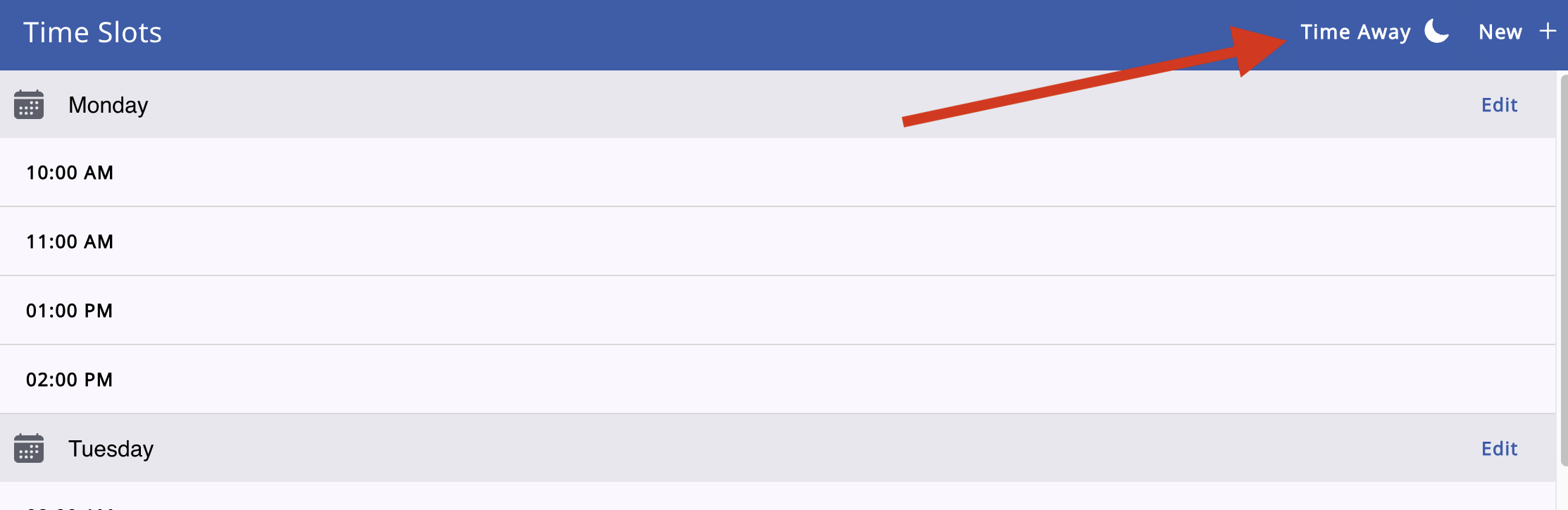
There are times when you may need to block time slots, for example, when you go on vacation. Use the Time Away feature. When you fill this out, time slots will be blocked, and no one will be able to book inspections during that time.
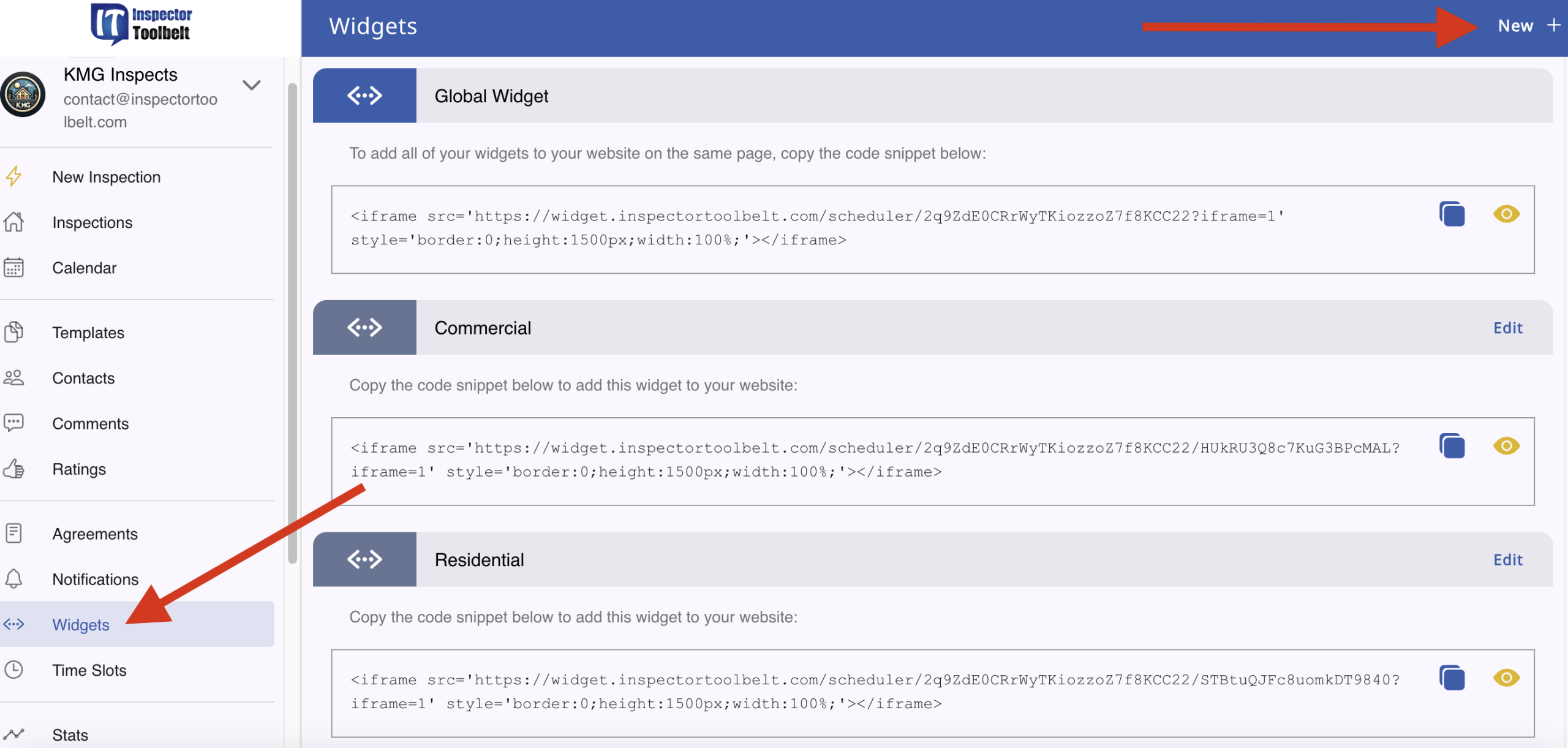
After you have your Time Slots set up, go to Widgets. This is where you will set up the types of services you perform and all of your pricing. Widgets can be added to your website to allow clients to schedule appointments.
To set up a widget, click the New button.
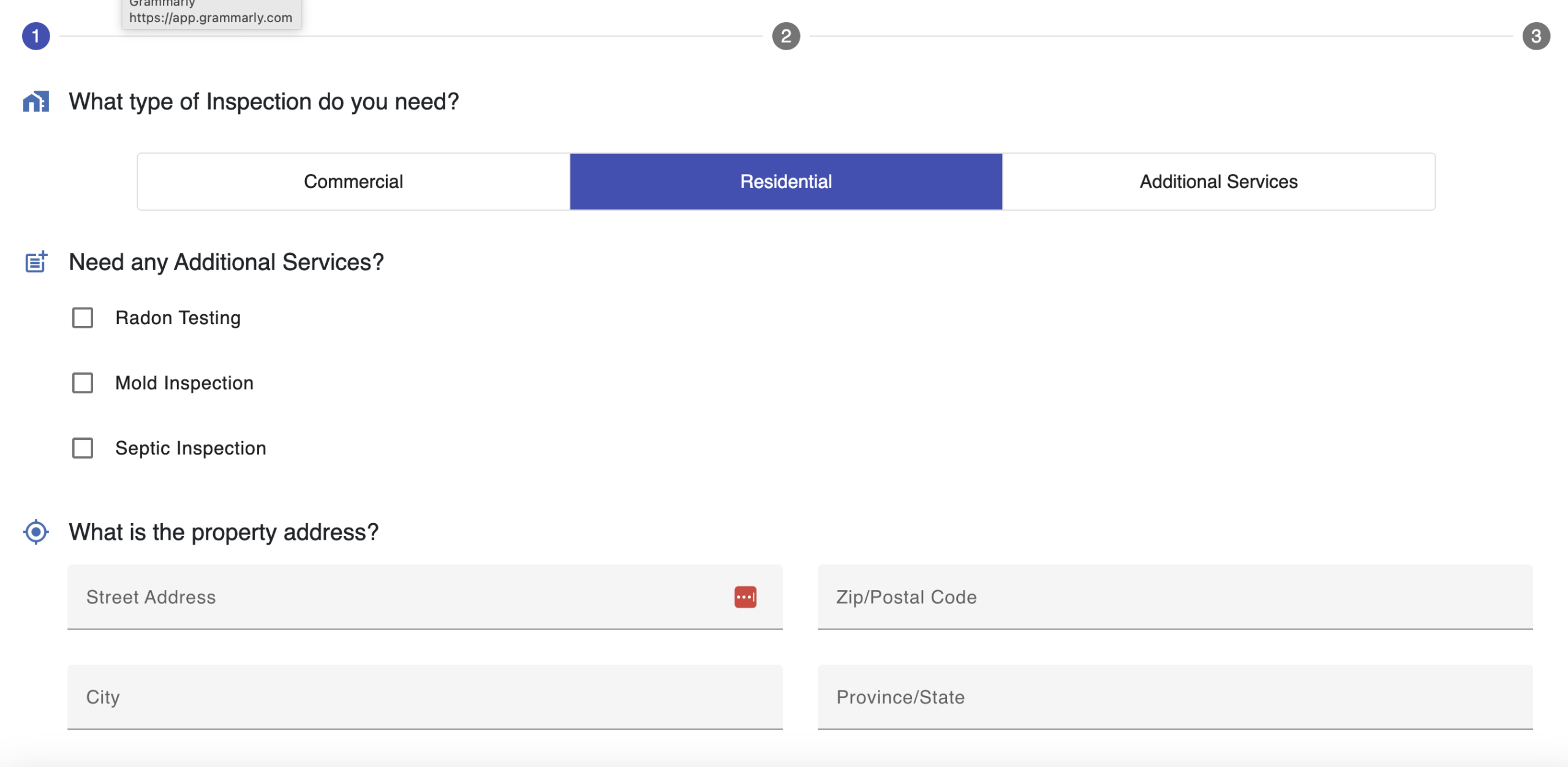
There are three types of widgets that you can set up: Residential, Commercial, and Additional Services. (Note: You can add additional services within a Commercial or Residential widget, or you can create a separate widget for times when a client is only getting those services.)
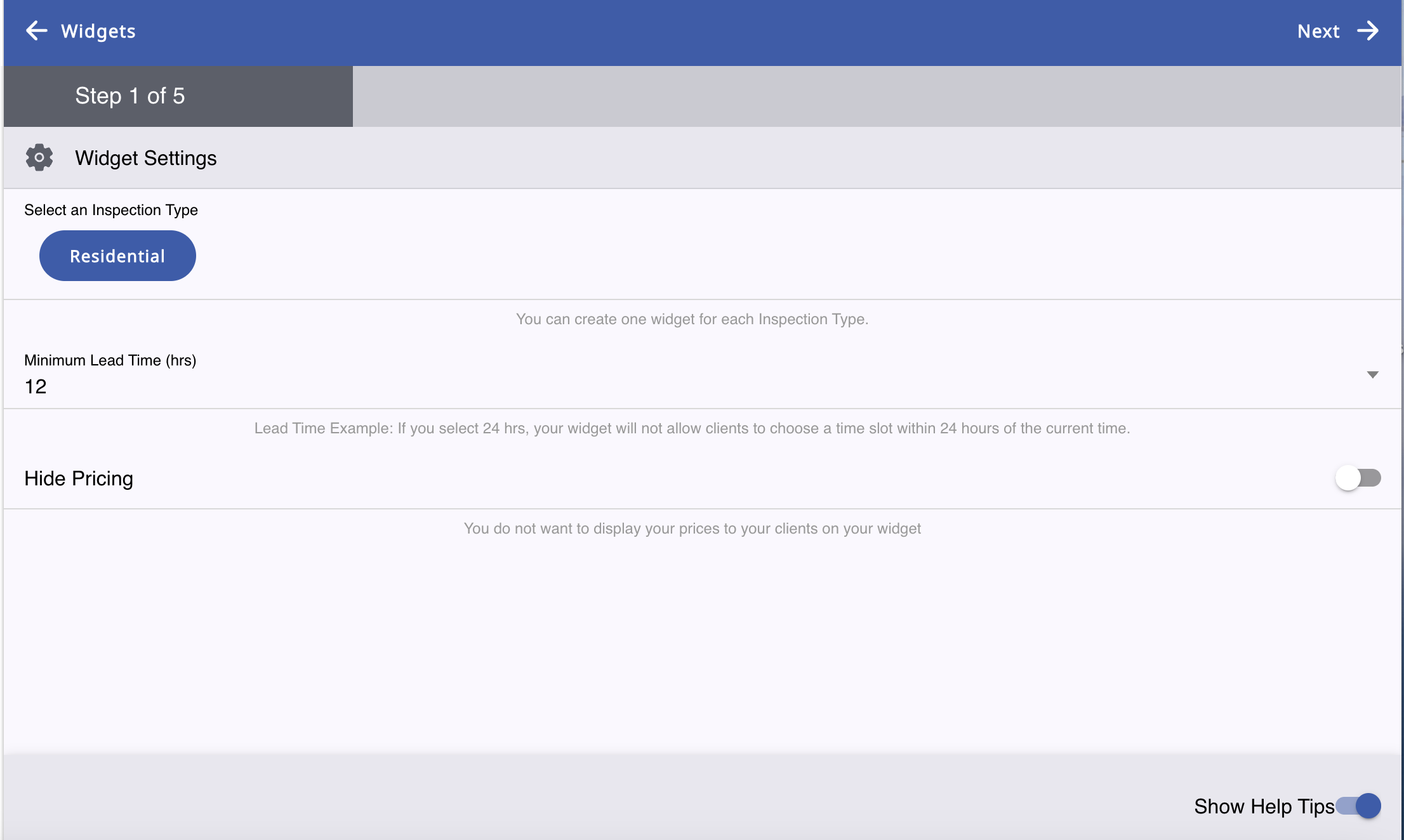
*TIP*: Make sure your Show Helpful Tips toggle is turned on to display explanations on the different section features and how to use them.
Fill out Steps 1-5 with your services you provide and pricing. Click Done at the end to save.
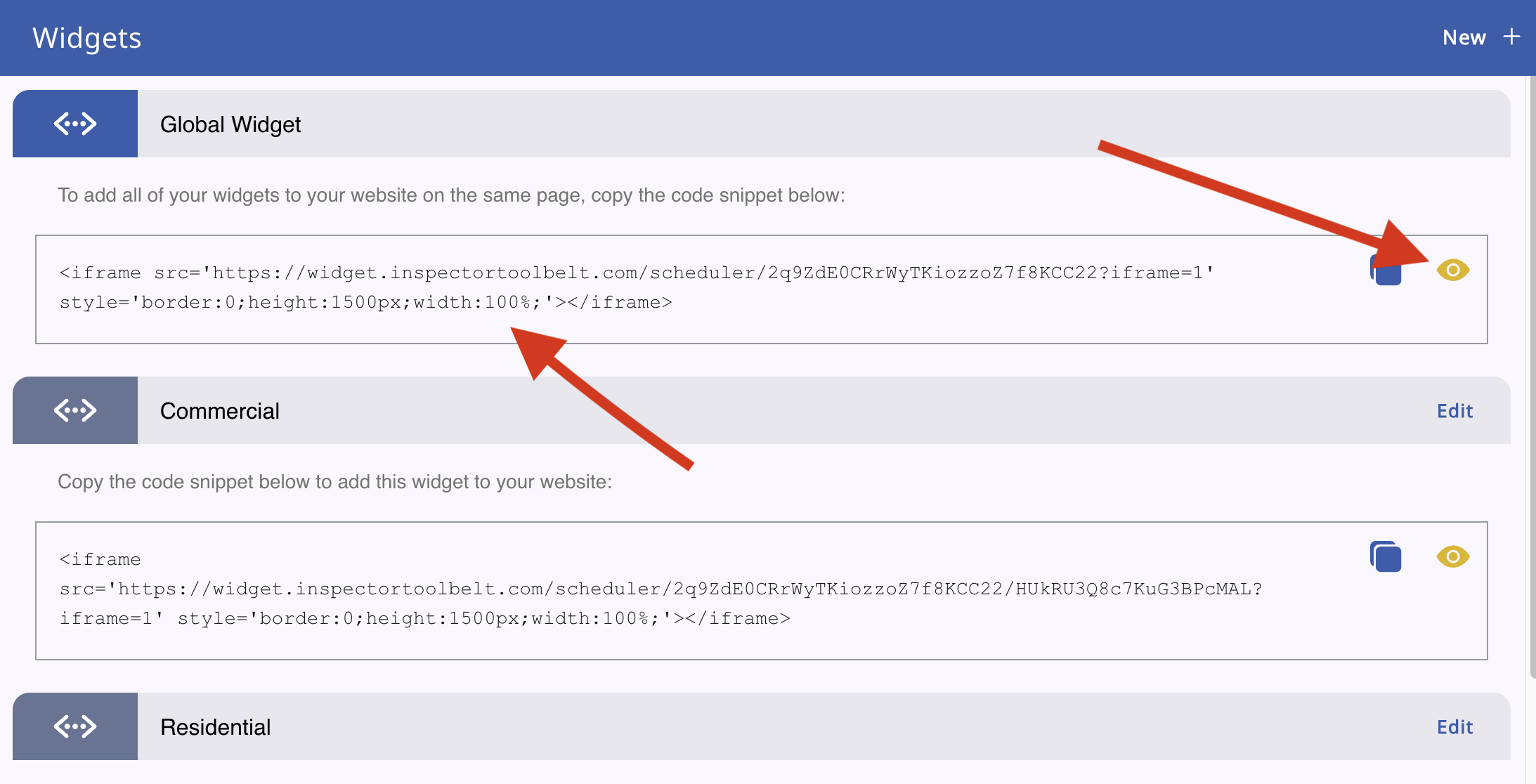
When you create more than one widget, you will see a Global Widget. This has all your widgets combined. You can have a website developer add the widget(s) to your website or do it yourself using the iframe code given.
By clicking the yellow eye icon, you can see what your client sees. Go through and fill out an inspection request, and if changes are needed, go back to your widget and edit.