
How To Add Custom Payment Tags
How to Add Custom Payment Tags in Inspector Toolbelt
Inspector Toolbelt allows you to create custom payment tags so your payment records match how you actually get paid. This is useful for inspectors who accept alternative payment types such as Zelle, PayPal, Venmo, cash apps, or other non-standard methods and want cleaner, more accurate bookkeeping.
Step-by-Step: Adding Custom Payment Methods
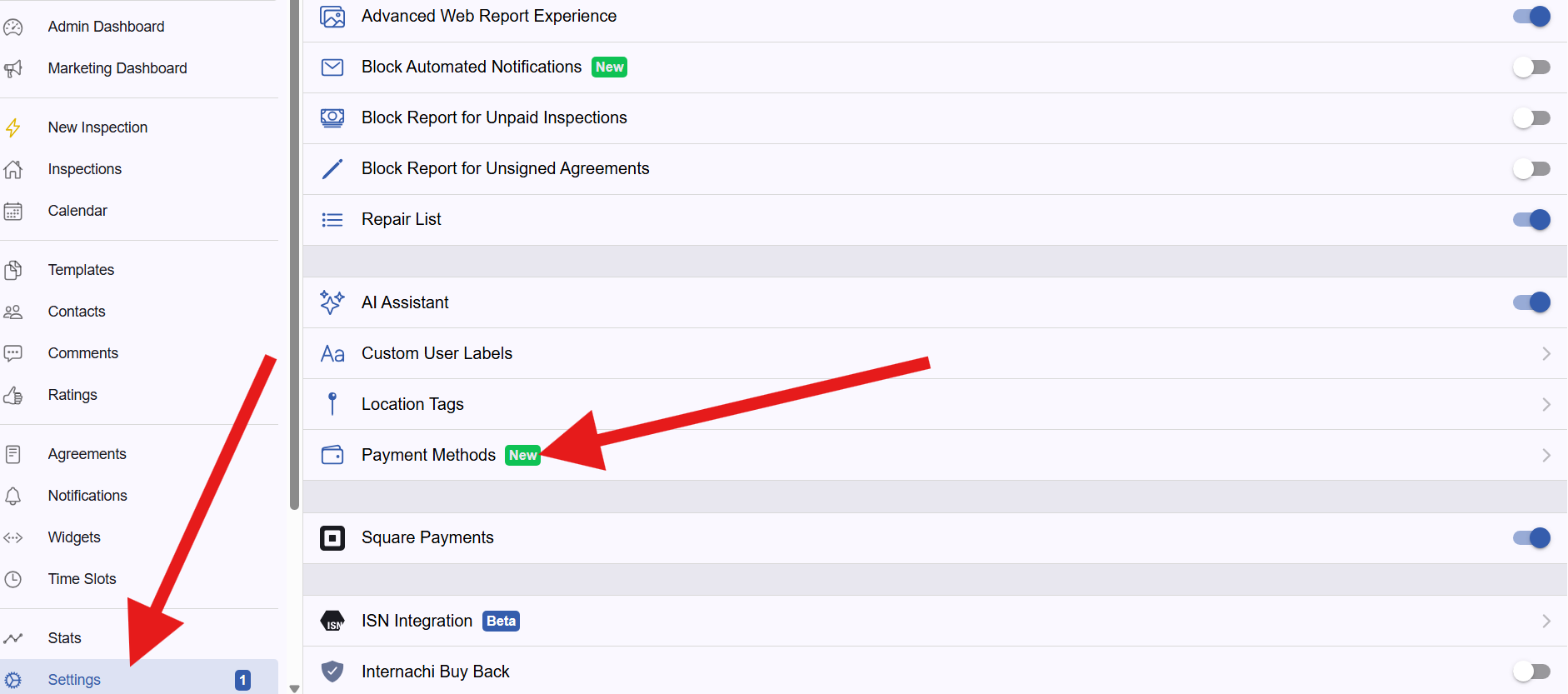
- Go to Settings
From your Inspector Toolbelt dashboard, navigate to Settings. - Open Payment Methods
- In the Settings menu, select Payment Methods.
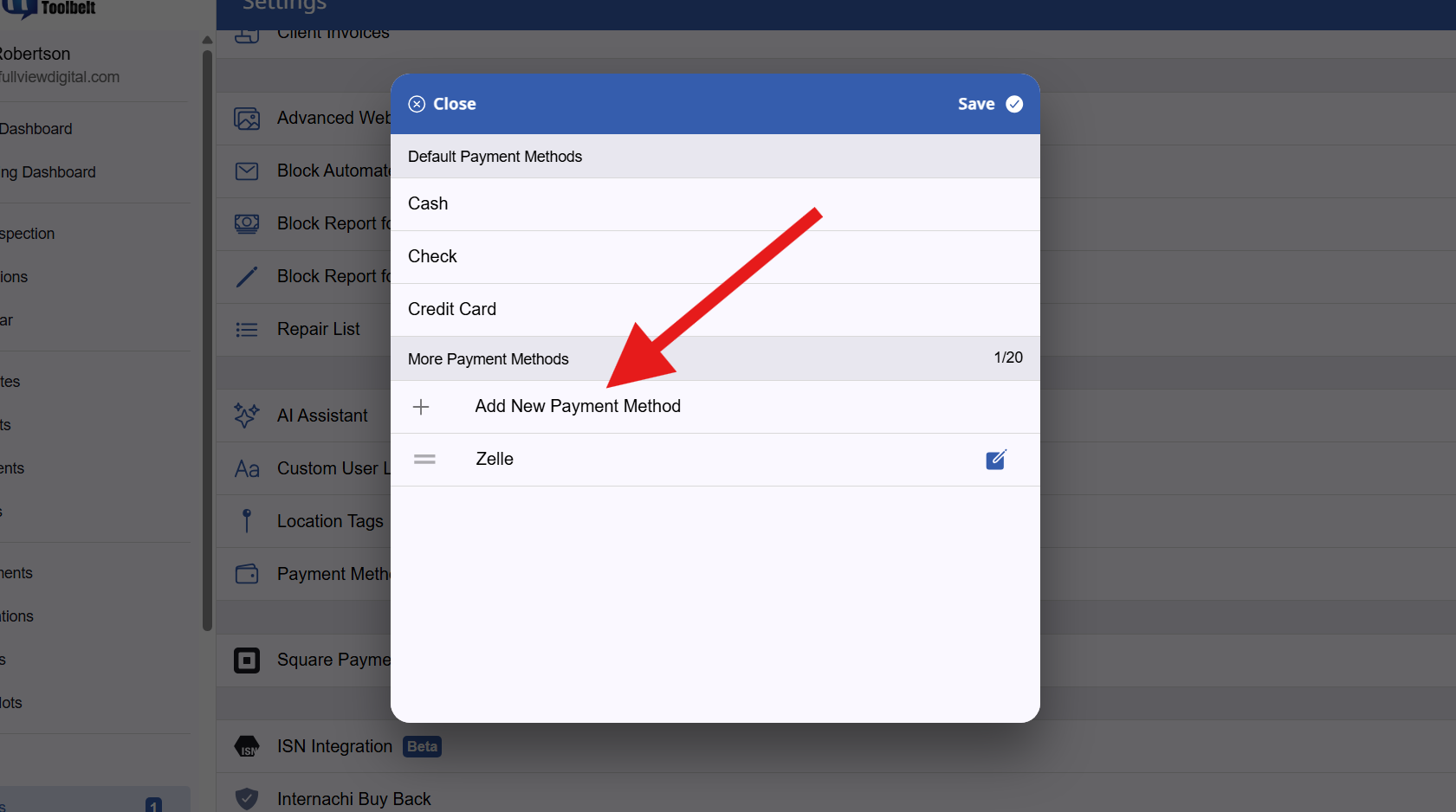
Add a Custom Payment Type
Here, you can add new payment methods such as:
-
Zelle
-
PayPal
-
Venmo
-
ACH
-
Cash Apps
-
Or any custom payment type you prefer
Enter the name of the payment method and save it.
Using Custom Payment Tags on an Inspection Order
Once your custom payment methods are added:
- Open an inspection.
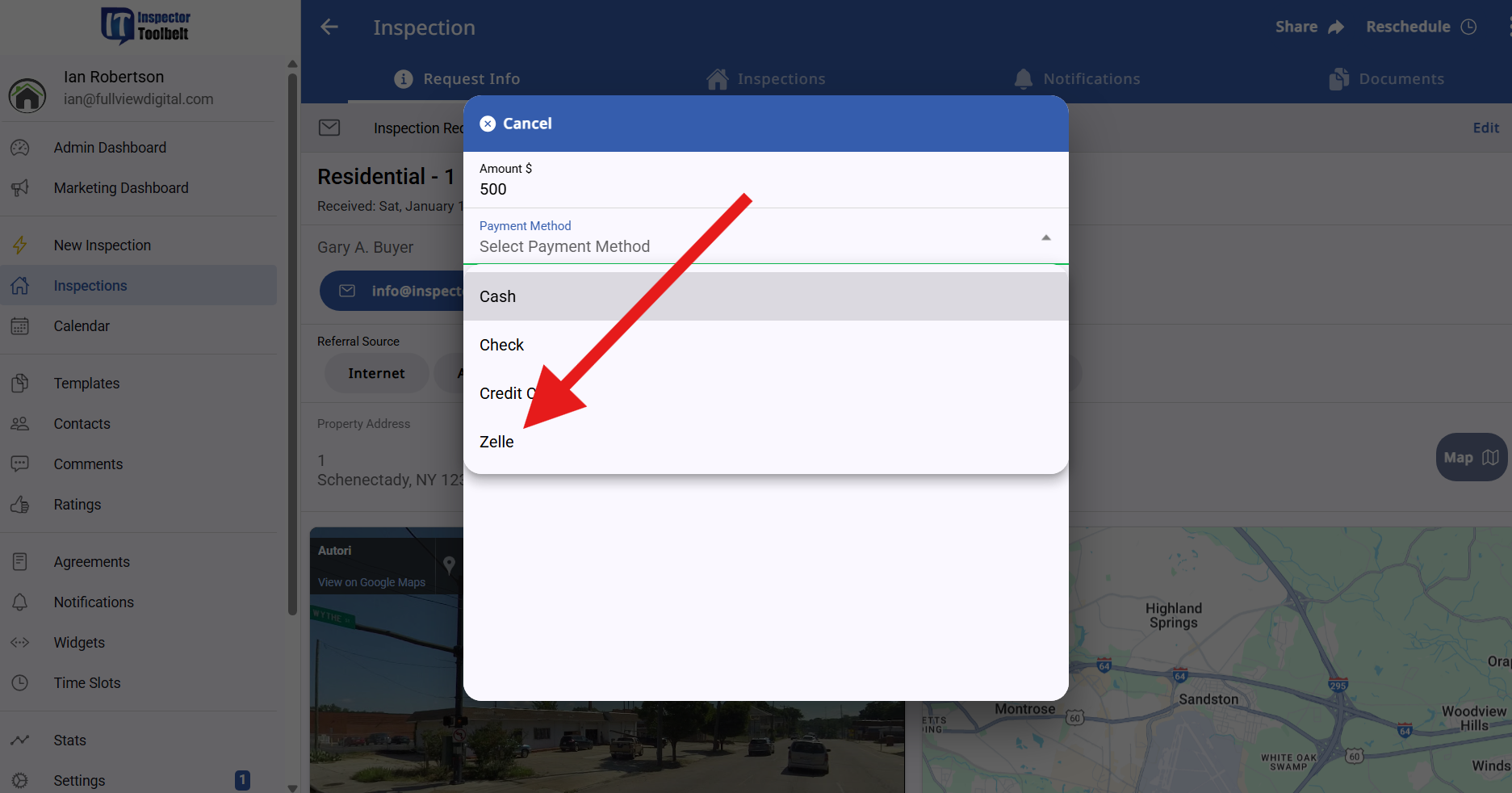
- Click Accept Payment.
- Your newly created payment options will now appear alongside standard methods like check or credit card.
- Select the appropriate payment type to accurately tag the transaction.
Custom payment tags give you:
-
More granular financial tracking
-
Cleaner payment records
-
Better clarity when reviewing past inspections
-
Easier reconciliation for accounting and taxes
This feature is designed to adapt to how inspectors actually operate in the real world—without forcing everything into generic payment categories.