
Skip to main content


What Else Would You Like To Know?
How to Upload Inspector Signature And Add To Report And Agreement
You can now add the inspector’s signature to your agreement through these steps:
- Upload inspector signature on your profile. Click your name on the upper left, below the Inspector Toolbelt logo. You can see your Display Name, Email Address, License Information, and click on “UPLOAD SIGNATURE” on the Signature. Next, upload the image of the signature that you want to appear on your reports and agreements.
- To add it to your agreement, just select agreement on the menu on the left.
- Add a new footer by clicking “New +” at the upper right, then select “Footer.” Next, fill out the information needed and select “Inspector Signature” under “Type”. Click on “Done” once finished.
To add your signature to your report, just do this in your template:
First, you either create a new card specifically for the signature or you edit your general information card at the beginning of the report. It needs to be an “Information Item.”
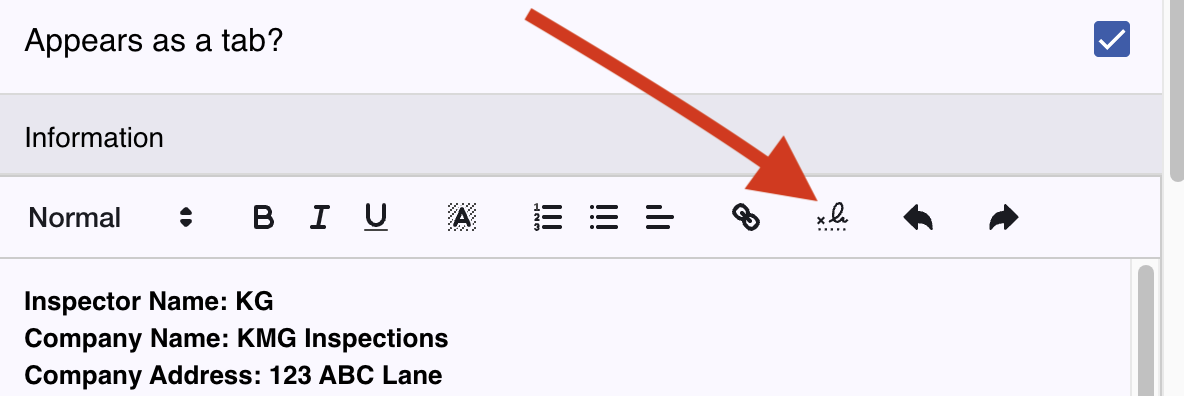
Second, click on the signature button to add it to the card.
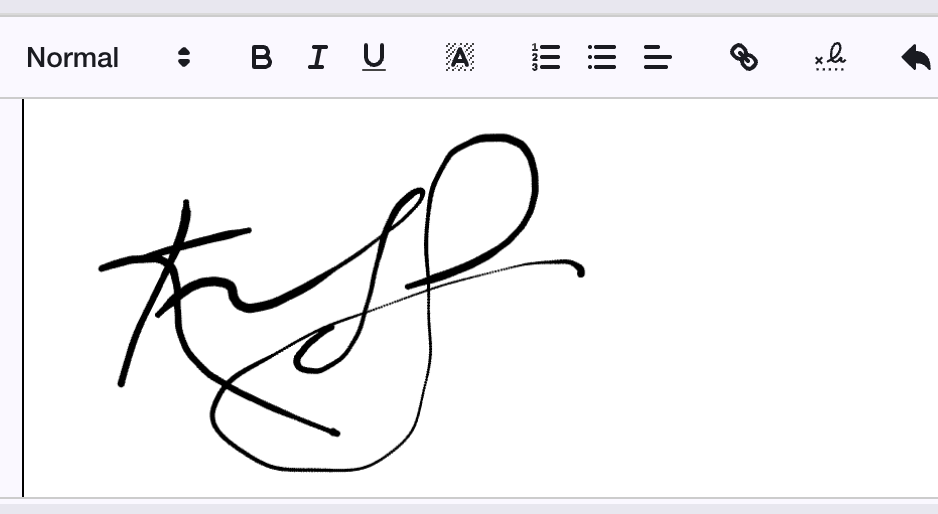
You should now be all set with the signature on your report.