How To Set Up Your Notifications
Using notifications, you can send text or email notifications to clients, reminding them of the appointment, providing a link to your agreement and invoice, and following up with a link for leaving a review.
If you want to edit an existing notification, you can click the “Edit” button. To create a notification from scratch, click the “New +” button.

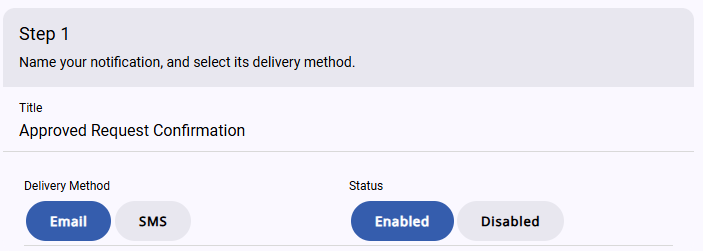
Your notifications are set up in 4 steps. In the first step, you set up a title for the notification. This is what you will see in your list of notifications, but your clients won’t see it. You can also select whether you want it sent as an email or an SMS (text message). Finally, you can enable and disable this notification as needed. If you have it disabled, it will show a red x icon in your list of notifications.
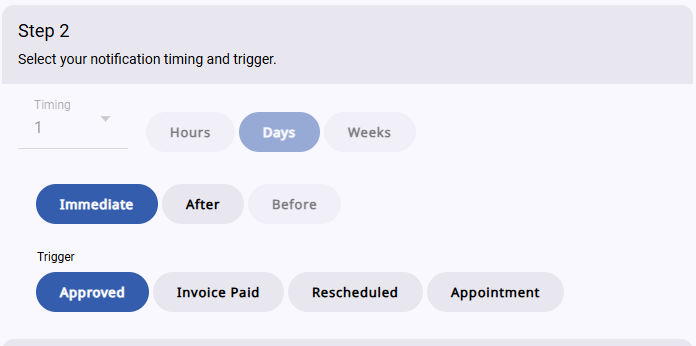
In the second step, you set up when this notification will go out. You can center it around 4 different events. 1) When you click the “Approve” button for an inspection (Or if you have auto-approved turned on, this happens as soon as the client signs up) 2) When the invoice is marked as paid, whether you do it manually or it gets communicated by Square. 3) When you have to reschedule an inspection 4) The scheduled time of the appointment.
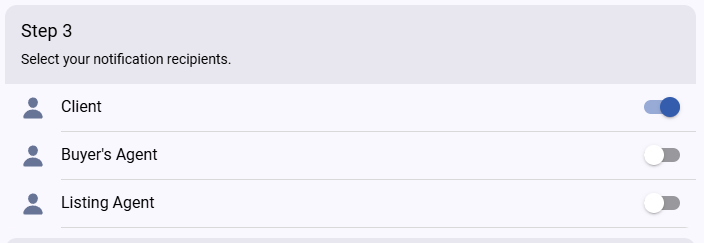
In the third section, you pick who will receive your notifications. You can select any combination of recipients.
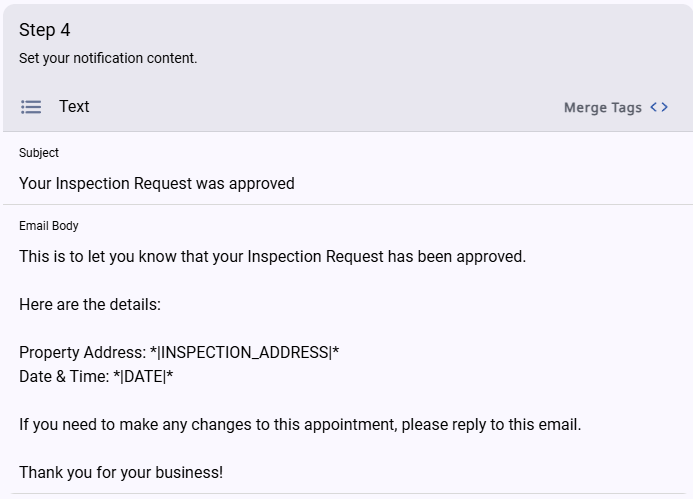
The fourth step is where you write the content of the notification. You have several merge tags you can insert into the text to pull in information from the inspection request. This will personalize the content for each inspection. Please note that text messages are limited to 255 characters, but it’s recommended to keep them short and concise to prevent problems. This is especially true when using merge tags since they can be pretty long.