How to Set Up and Customize Your Report Delivery Notification
By following the steps below, you will be able to set up an automated, customized email that sends report links to your client(s).
Please note: Creating a notification that uses the “Report Published” trigger will override the system’s automated report delivery.
For example, if you set this trigger to send 8 hours after the report is published, your client will not receive the report notification until that 8-hour delay has passed.
Additionally, if you create a notification with this trigger but do not include a link to the report, the automated message sent to your client will not contain the report.
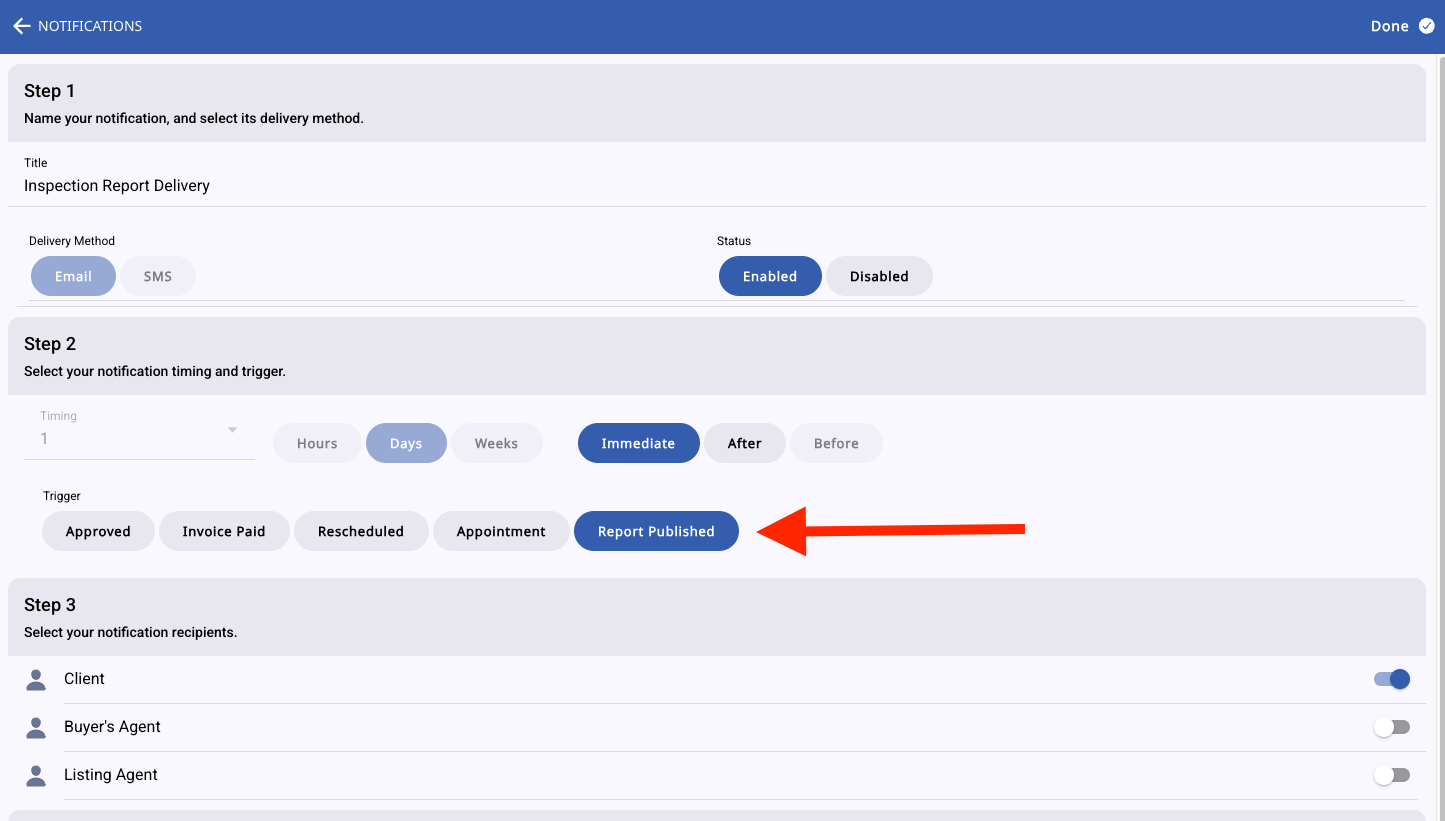
Go to your Notifications in your menu and create a new notification. Select when you would like this to go out, and be sure to set the Report Published trigger.
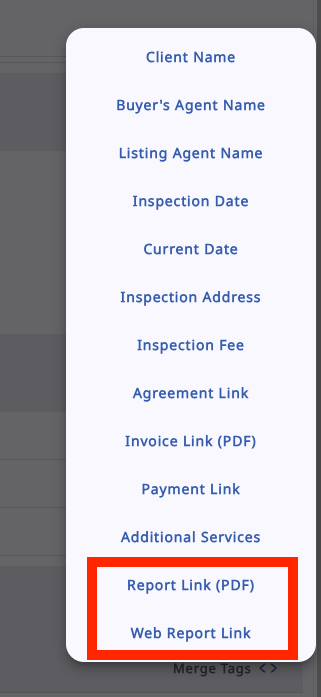
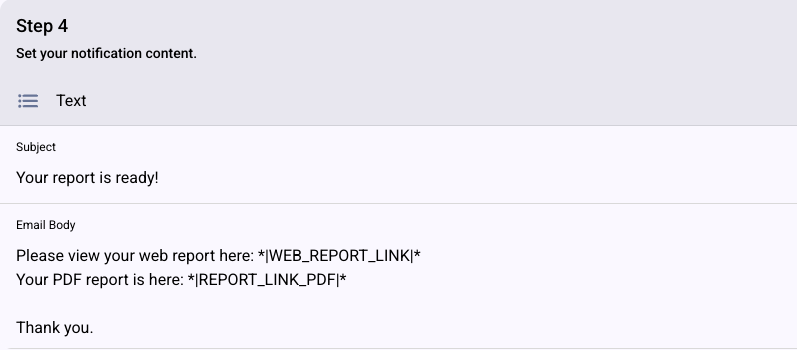
In Step 4 of the notification, use the Report Link (PDF) and Web Report Link Merge Tags in the body of your email.