How to Reorder, Move, & Copy Images
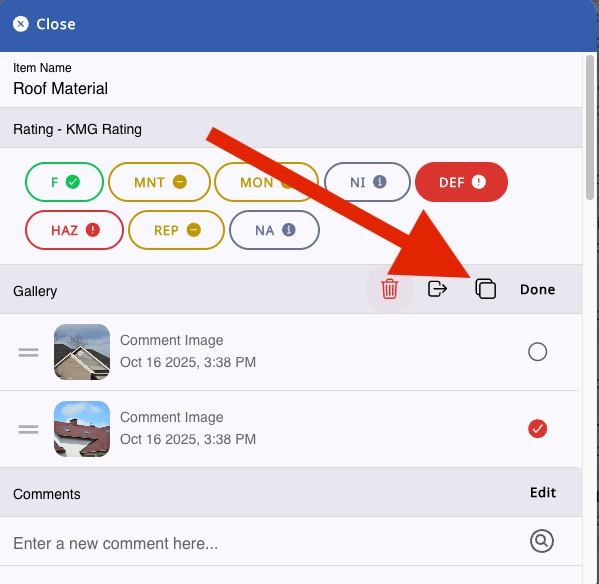
Reordering images in the gallery has now been made easier. You have to go to the gallery where the images are uploaded and click on “Edit.”

Once you click on “Edit” it will show you the list of images and allow you to delete or rearrange them. Simply drag the image using the two lines on the left and drop them in your preferred order to reorder the images.

Once you are satisfied with their order, click on “Done.

To move images from one card to another, select the pictures you would like to move and click on the symbol for moving. It will show you a list of your cards. Select where you want the image transferred, then click on done.


You can also Copy images from one card to another. Hit the Copy icon, select your photo, and choose where to copy to.
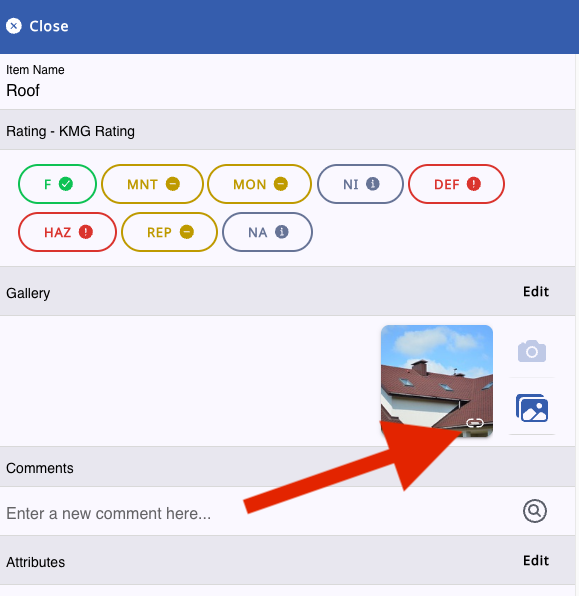
Please note: The copied image will have a link icon on it. This shows it’s the copy and the images are linked. If you delete the copy, the original photo remains. But if you delete the original photo, the copy will be deleted as well.