
Skip to main content
What Else Would You Like To Know?
How to Block Notifications
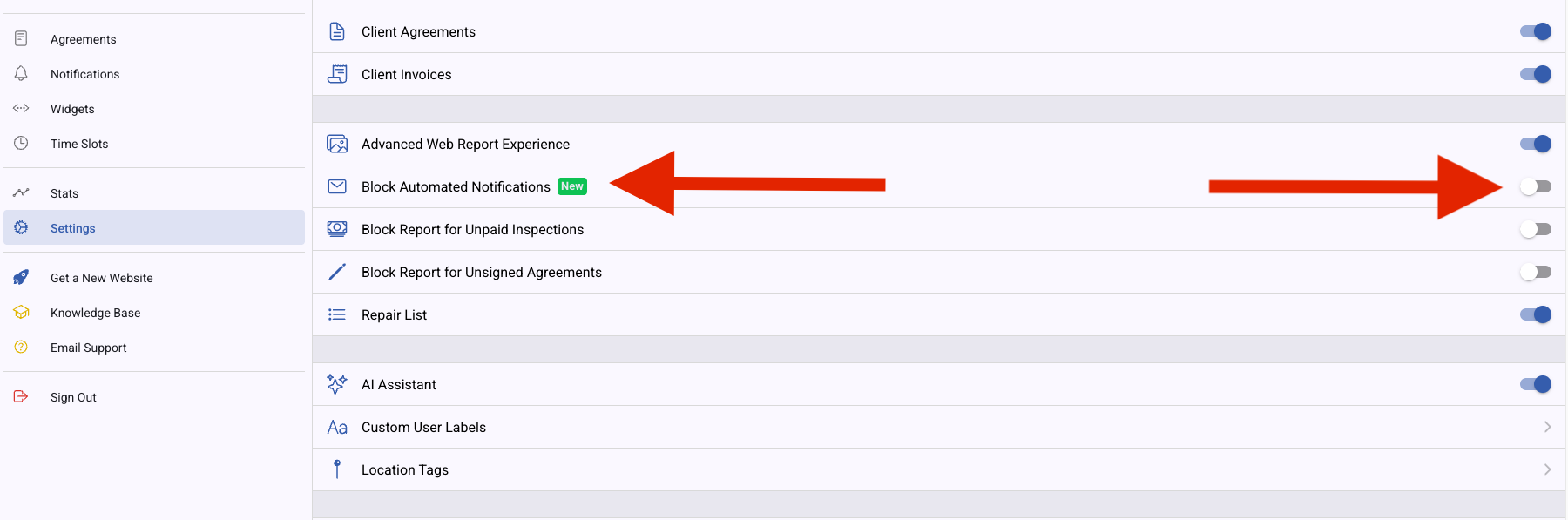
You are now able to block notifications from going out. You can do this for individual inspections or all inspections.
To block notifications on all inspections, go to Settings and turn on the toggle next to Block Automated Notifications.
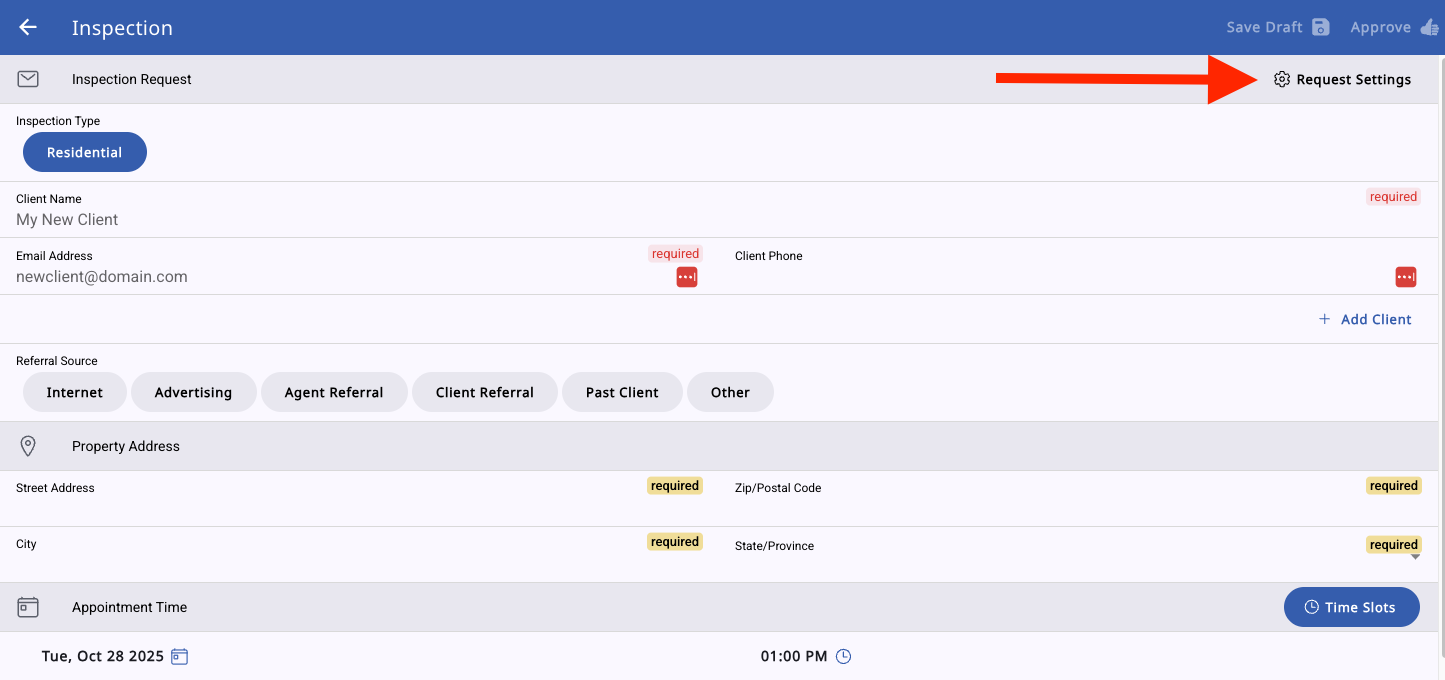
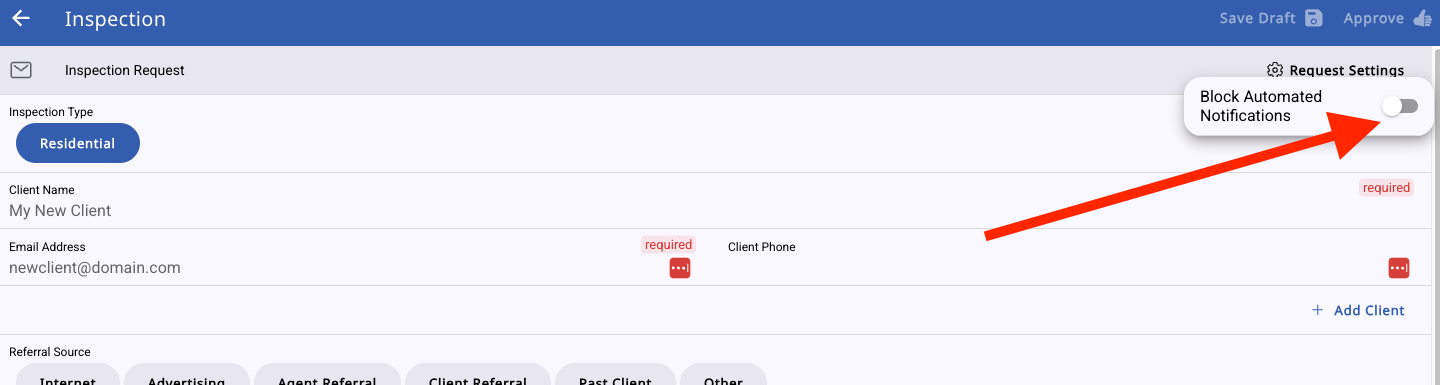
To block notifications on an individual inspection, you will see the Request Settings button at the top of your inspection request. Turn that toggle on.
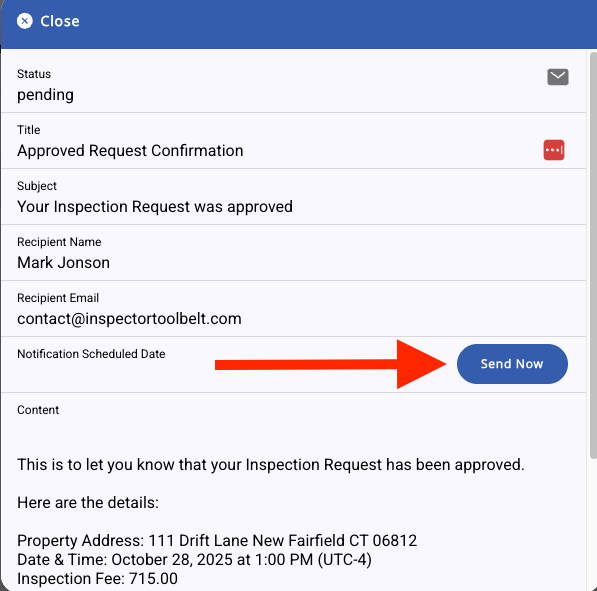
If you want to manually send out the notifications later for an inspection, you can go to the Notifications tab in that inspection, click on the notification you want to send, and hit Send Now.